Getting Your Data into EllieMD Insights
Two quick steps: export from Trinity, upload to your dashboard. Takes about 2 minutes.
What You'll Need
- Access to your Trinity account
- Your EllieMD Insights login
- About 2 minutes
Log in to Trinity and open Tabular Genealogy
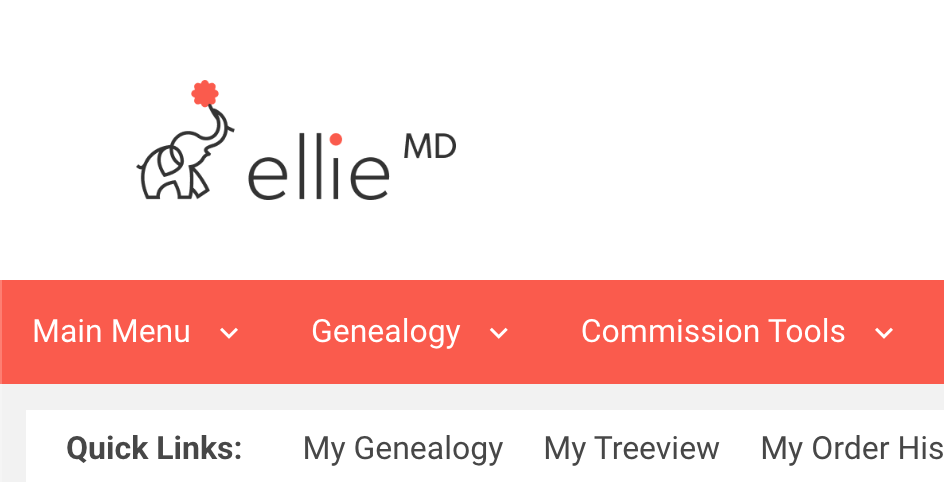
Sign in at partner.elliemd.com, then click Genealogy → Tabular Genealogy in the top navigation.
Download the entire Genealogy report
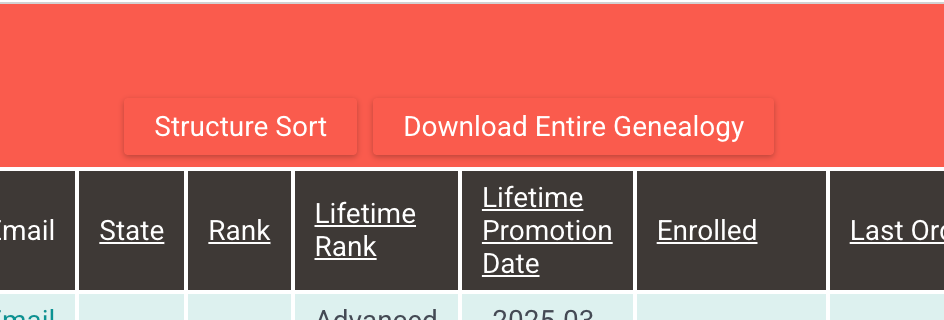
On the Tabular Genealogy screen, click Download Entire Genealogy. Save the CSV to your Downloads folder — you'll only need it temporarily.
Log in to your EllieMD Insights dashboard
Sign in as usual. You'll land on your main reporting screen.
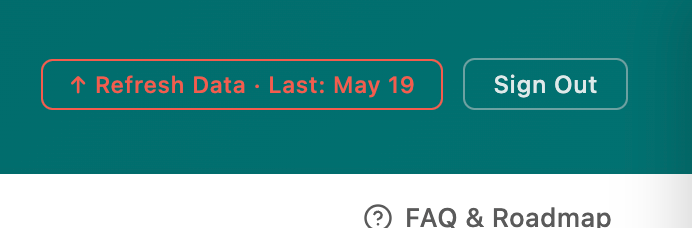
Click the "Refresh Data" button
Find it in the top-right corner of the dashboard. If your data is overdue for a refresh, it'll have a pulsing animation to catch your eye.
Select your Trinity CSV file
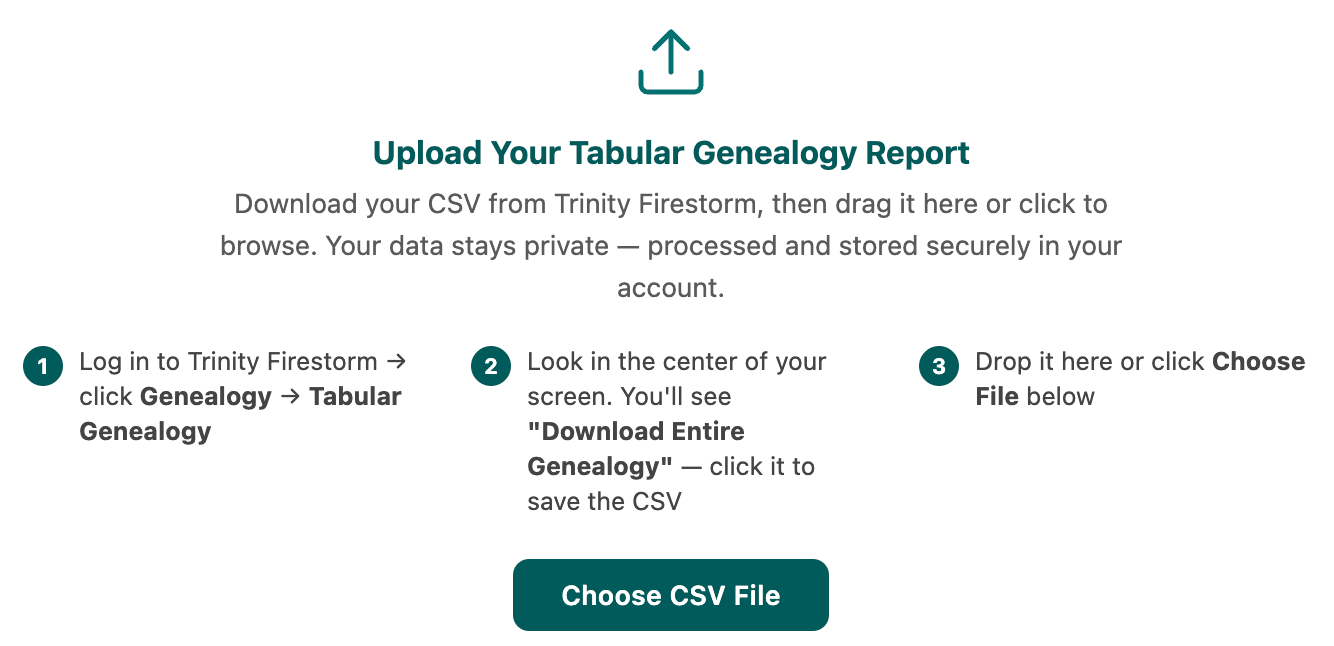
The upload panel opens with quick reminders of what to grab from Trinity. Drop the CSV into the box or click Choose CSV File to browse for it.
Wait for the confirmation
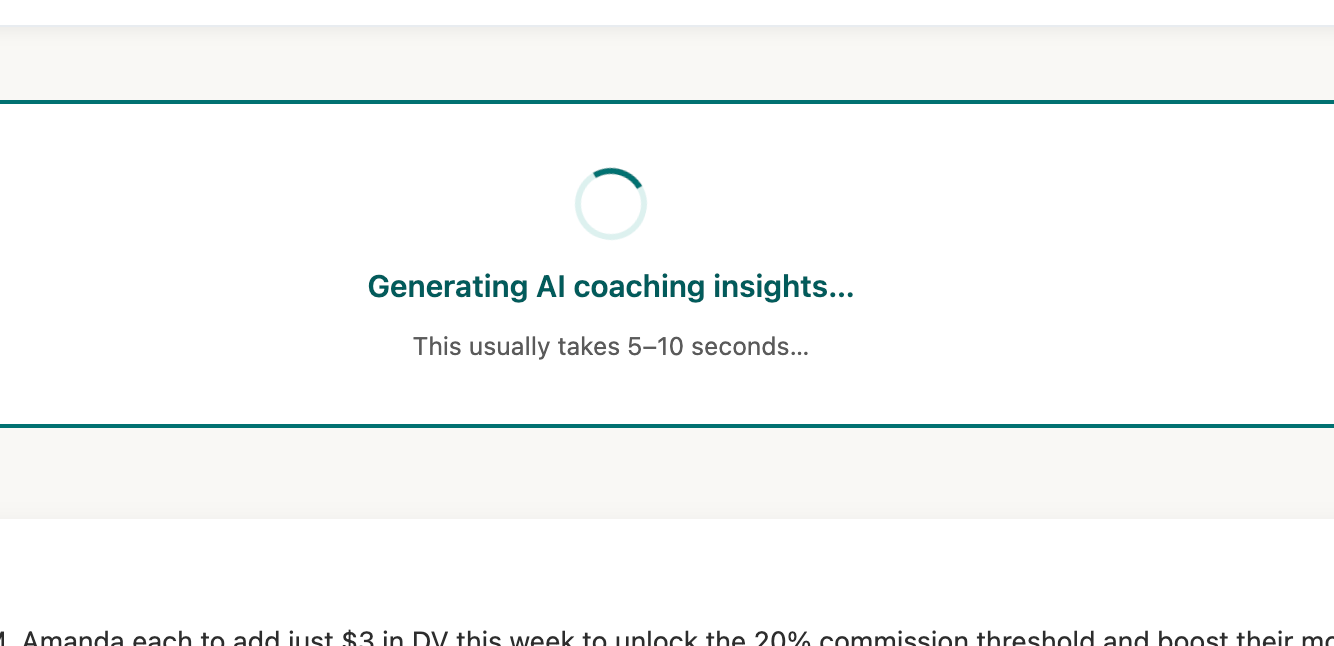
Your dashboard refreshes automatically once the upload is complete. You'll see a brief "Generating AI coaching insights" message, and within about 5–10 seconds your numbers will be up to date.
You're all set!
Your dashboard now reflects your latest downline data. We recommend doing this once a month after your close date to keep everything current. That's it — nice work!
Stuck somewhere? Hop into the dashboard or head back to the overview.